Git for Beginners
What is Git
Git is a Distributed Version Control System (DVCS) used to track changes in files and source code during software development.
Git is a distributed version control system that manages and tracks project changes efficiently.
Why is used Git
Git is used to manage, track, and control changes in source code during software development.
Tracks Code History: Saves every change, so you can return to any previous version.
Enables Team Collaboration: Multiple developers can work on the same project without overwriting each other’s work.
Supports Branching: Developers can create separate branches to work on new features safely.
Data Integrity: Git uses cryptographically secure hashing (SHA-1) to ensure the integrity of the code and its change history, protecting against accidental or malicious corruption.
Common Git Commands:
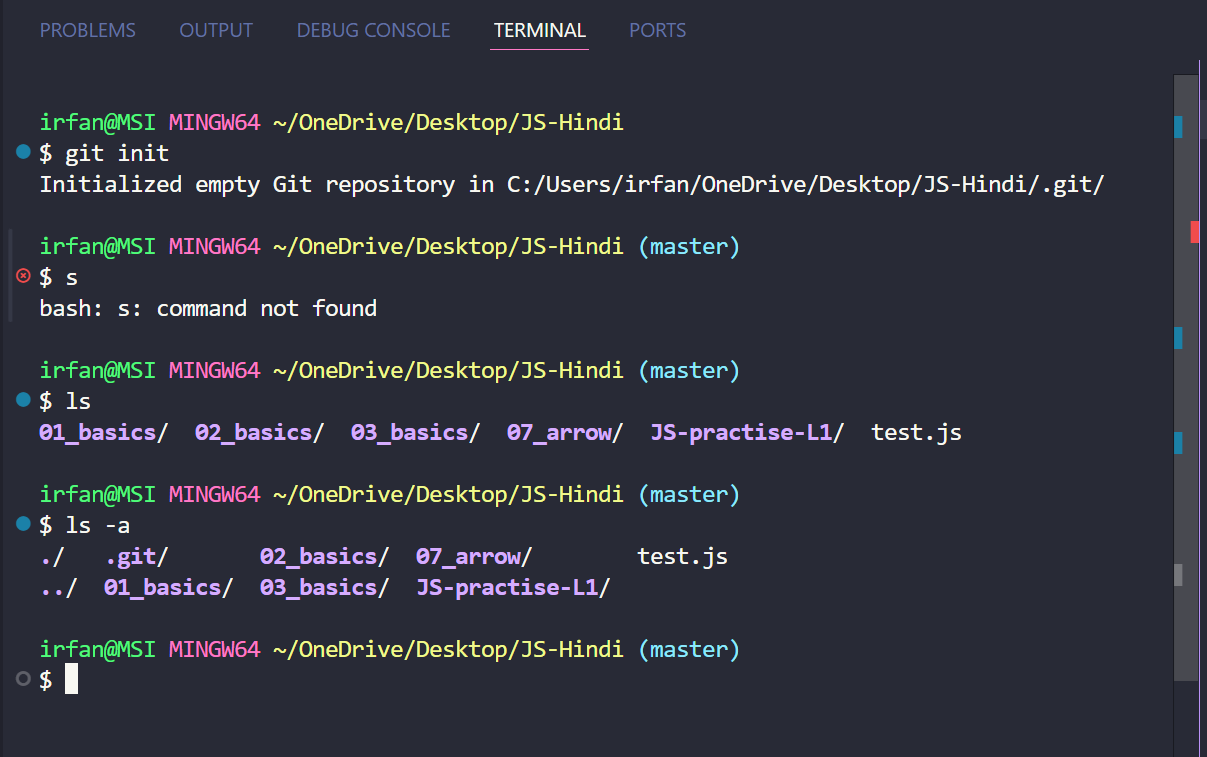
git init | Initialises a new git repository in the current directory |
git clone <url> | Creates a local copy of a remote repository from specific URL, including all its files, history and branches |
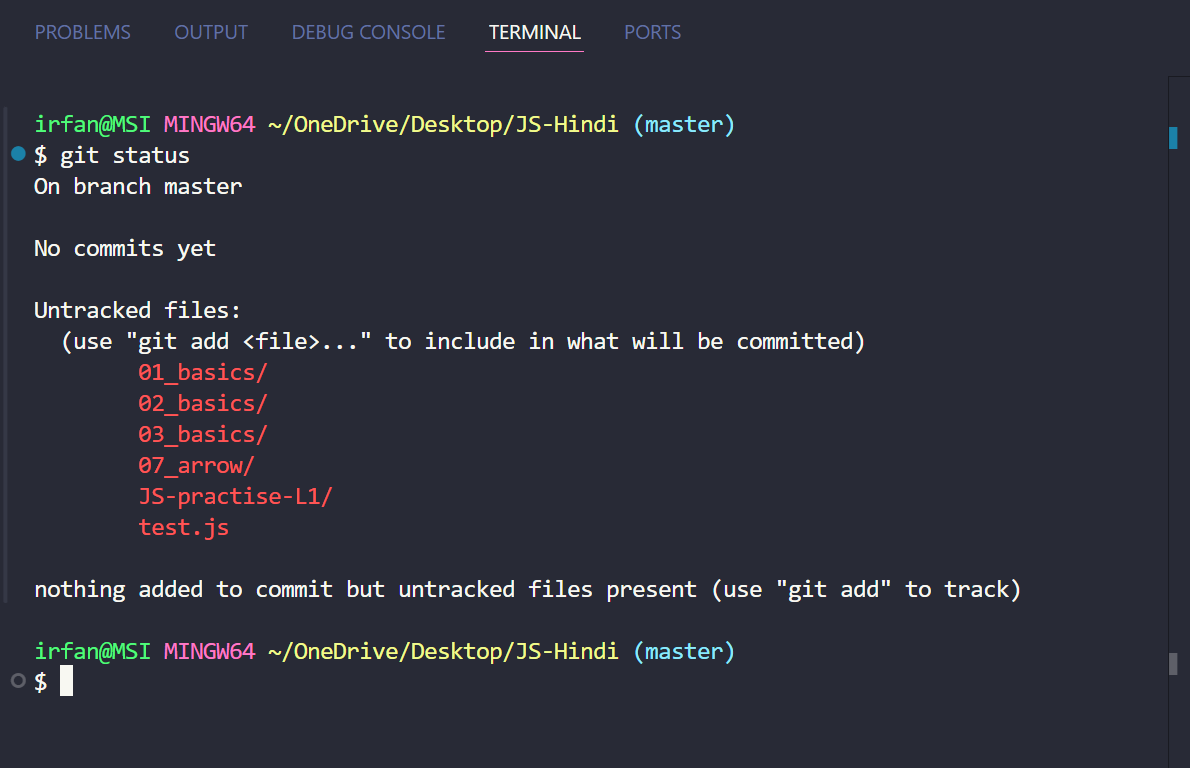
git status | Shows the status of changes as untracked, modified, or staged in the working directory |
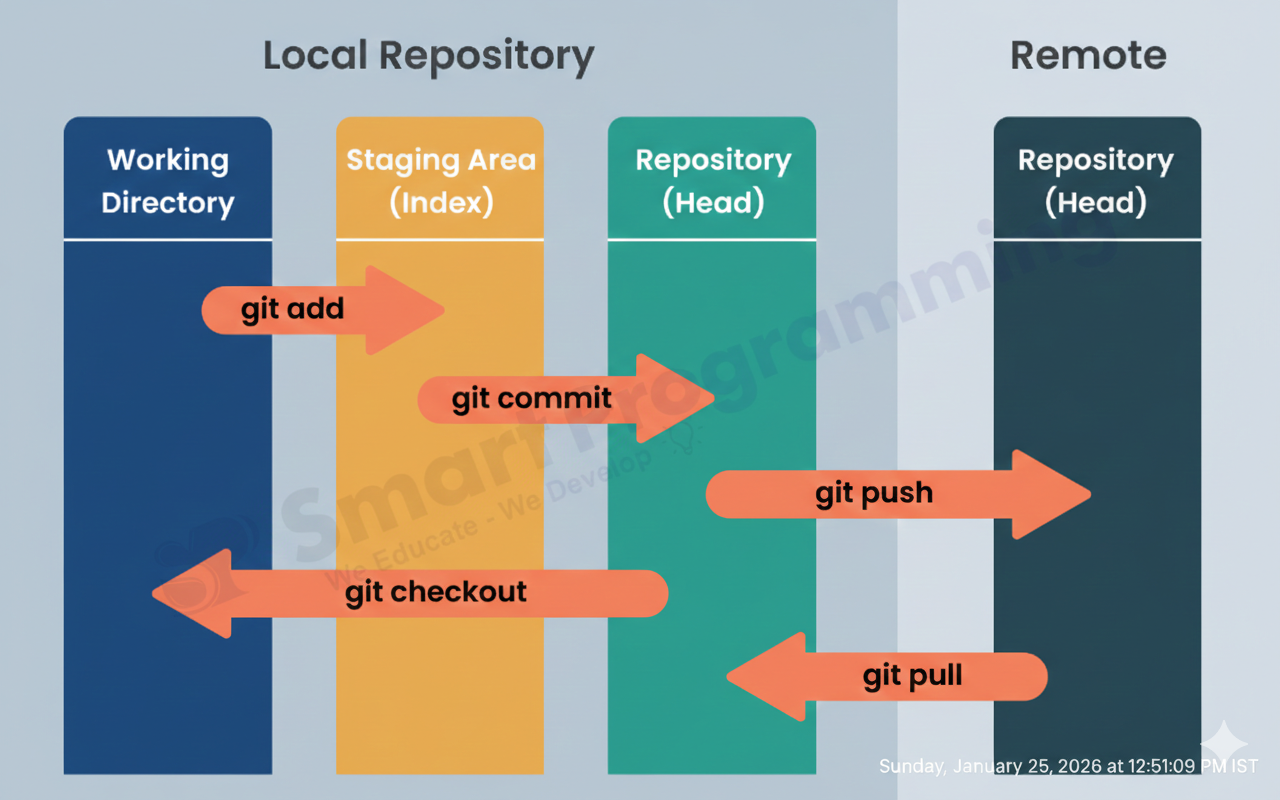
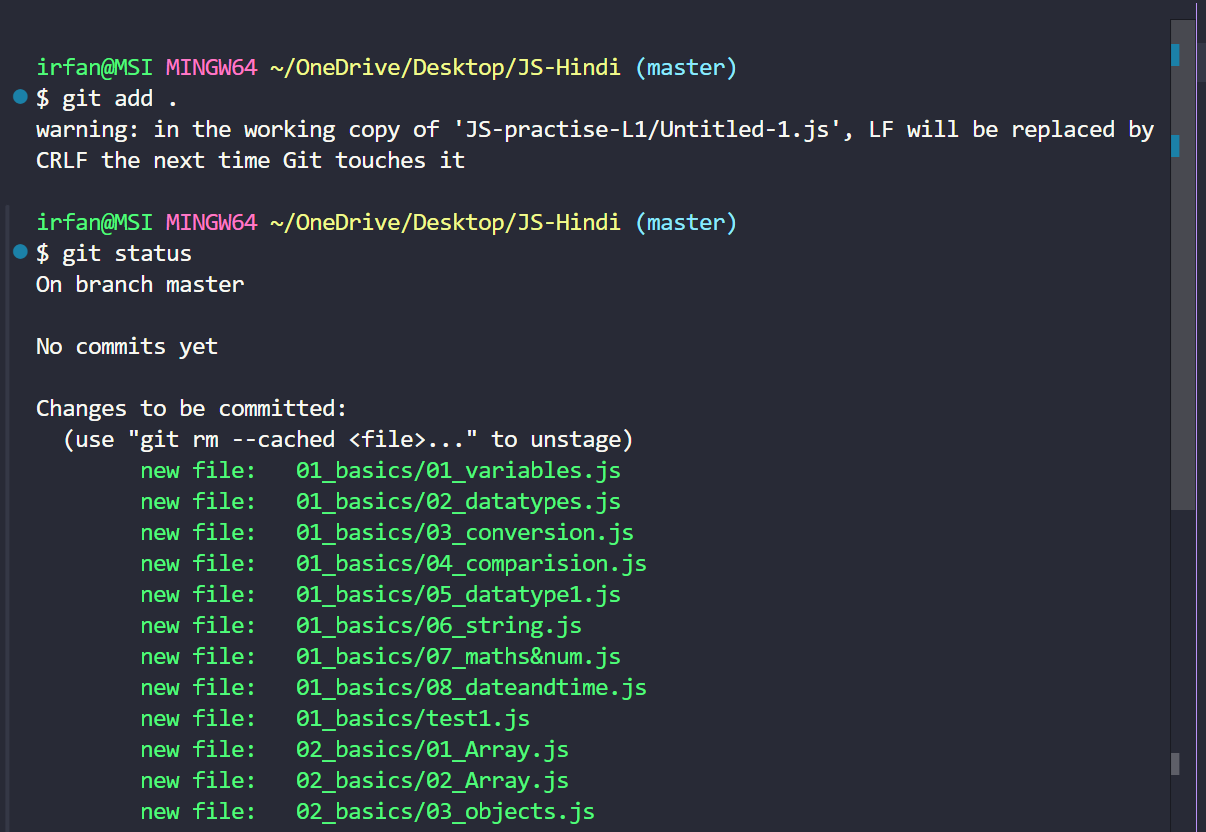
git add <file_name> | Stages a change, adding a file or changes in a file to the staging area, which is the next snapshot to be committed |
git add . | Stages all new changes and modified files in the current directory and its subdirectories |
git commit -m <message> | Saves the staged snapshot to the project history with a descriptive message |
git diff | Show the difference between the working directory and the staging area |
git branch | Lists all local branches in the repository |
git branch <branch_name> | Creates a new local branch |
git checkout <branch_name> | Switches to the specified branch or a previous commit |
git checkout -b <new_branch_name> | Creates a new branch and switches to it in one command |
git merge <branch> | Merges changes from the specified branch into the current active branch |
git remote add <alias> <url> | Adds a remote repository to your local configuration |
git push <remote> <branch> | Uploads local commits to the remote repository (eg: git push origin main) |
git pull | Fetches changes from the remote repository and integrated them into the current local branch |
git fetch | Downloads changes commits and refs from a remote repository into your local copy but does not automatically merge them |
git log | Displays a log of all commits in the current branch history |
git stash | Temporarily saves changes that are not ready to be committed, allowing you to switch branches or work on something else |
git config | Used to set user specific configurations like make and email address before committing. |
Git Essential Commands
git init
Initialises a new git repository in the current directory.
git status
Shows the status of changes as untracked, modified, or staged in the working directory.
git add
Stages a change, adding a file or changes in a file to the staging area, which is the next snapshot to be committed.
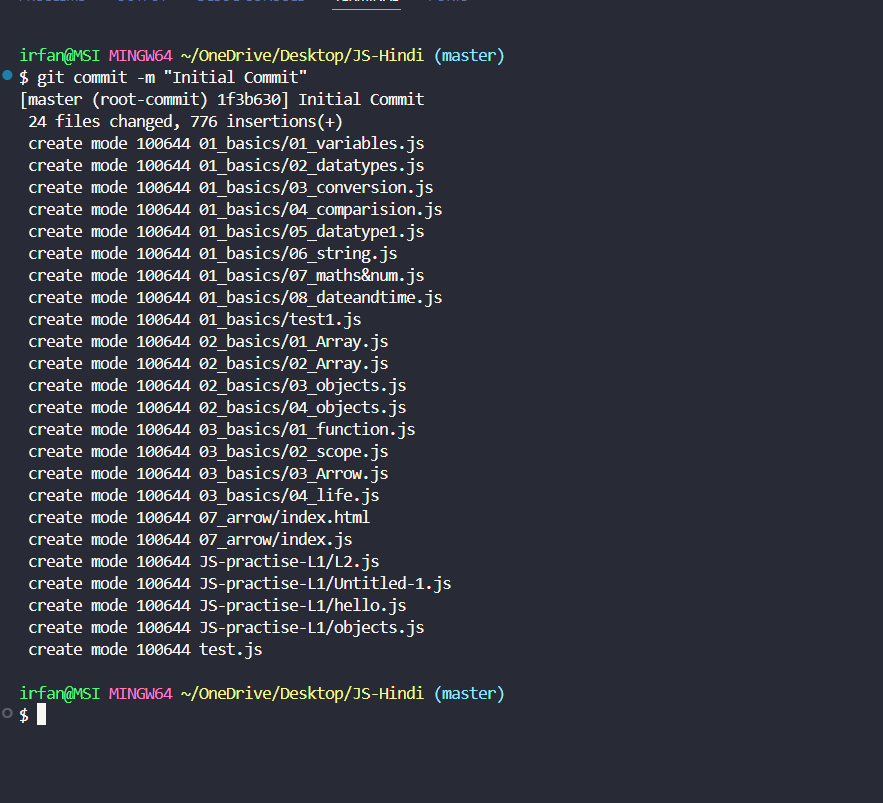
git Commit
Saves the staged snapshot to the project history with a descriptive message
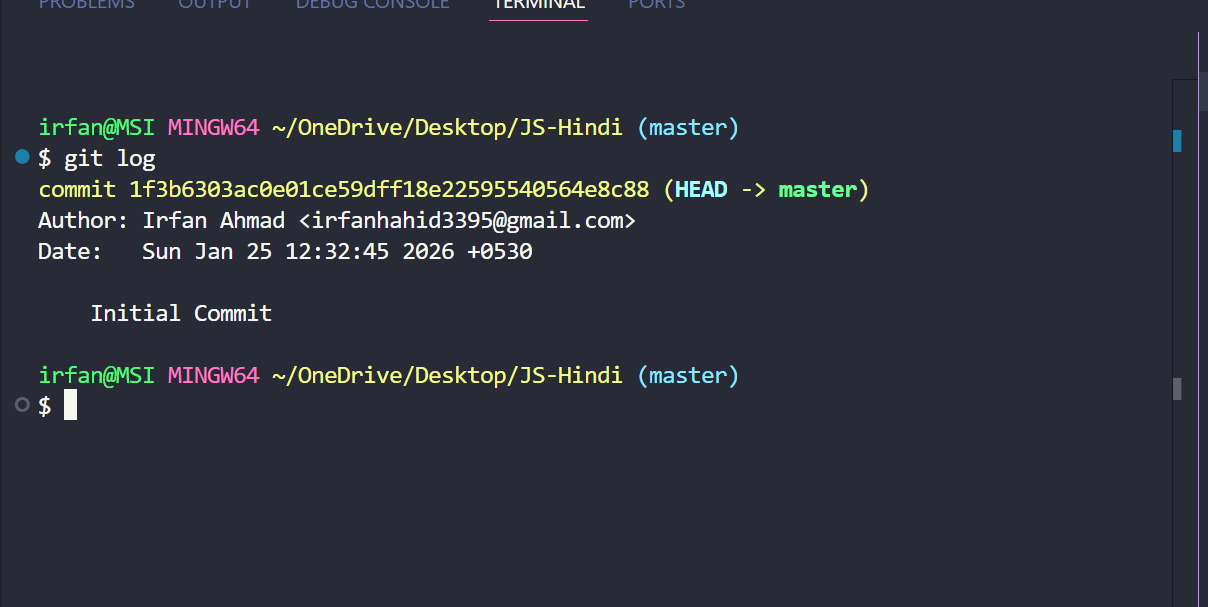
git log
Displays a log of all commits in the current branch history.
Basic Developer Workflow Using Git
Creating a local repository and initialising it with git
cd my_project
git init
• Clone an existing remote repository (alternative)
git clone https://github.com
cd repository_name
- Create a new branch
git checkout -b feature/my-new-feature
Make changes
Modify files, add now ones, or delete old ones with in your project directory using your preferred code editor
Stage your changes
git add . //To add all files to staging
git add specific_file.txt   // To add specific style
- Commit your changes
git commit -m "Initial commit"
- Push your changes
git push --set-upstream origin feature/my-new-feature
Create a PR
- Go to remote repository’s website (GitHub or gitlab) and open a pull request to merge your feature branch in to the main branch. This allows team members to review your code before it is integrated
Merge the PR
- After review and approval, merge the pull request via the web interface
Update your local main branch
git checkout main
git pull origin main
- This process creates a clear, traceable history of changes and facilities collaboration with in a development team.
Git Working Directory → Staging area → repository